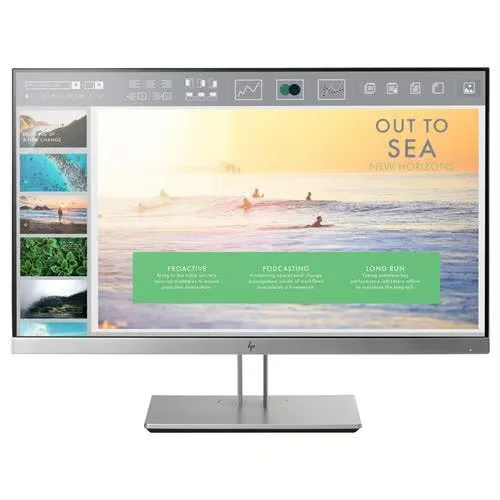
A second screen is one of the cheapest ways to make a laptop feel like a proper workstation. Ex-business monitors are a good fit for this. They were built to run eight hours a day in offices, they usually have better stands than consumer screens, and they come onto the refurbished market in large numbers when companies upgrade. The things worth checking on a monitor are different from a laptop, though, and a spec sheet won't tell you all of them. This guide covers panel type, size and resolution, ports, stands, and a quick test you can run the day yours arrives.
Quick answer
For office work, study and video calls, a 23 to 24 inch IPS monitor at 1920x1080 or 1920x1200 covers most people. Before you buy, match the monitor's inputs to what your laptop outputs, check which cables are in the box, and look for a height-adjustable stand. When it arrives, run full-screen white, black and colour tests to check for dead pixels and uneven backlight, and leave it on for half an hour to confirm it doesn't flicker or cut out.
Panel type: IPS, VA or TN
The panel decides how colours look and how the picture holds up when you're not sitting dead centre.
| Panel | Colour and viewing angles | Contrast | Where you'll find it | Good for |
|---|---|---|---|---|
| IPS | Most consistent colour, wide viewing angles | Average | Most business monitors from the last decade | Office work, photos, general use |
| VA | Good colour, narrower angles than IPS | Deep blacks | Some business and home monitors | Films, dim rooms, contrast-heavy content |
| TN | Colours shift when viewed off-centre | Lowest | Older and budget screens | Fast games on a tight budget |
If you're unsure, pick IPS. Among our current stock, the HP EliteDisplay E233 and HP V24 are IPS, while the HP ProDisplay P240va uses a VA panel, which suits you if you watch a lot of video in a dim room.
Screen size and resolution: the ratio matters
The same number of pixels spread over a bigger screen looks softer. Pixel density, measured in pixels per inch (PPI), is the easy way to compare:
| Screen | Resolution | Pixel density | How it looks at desk distance |
|---|---|---|---|
| 23.8in | 1920x1080 | 93 PPI | Sharp enough for office work |
| 24in | 1920x1200 | 94 PPI | Same sharpness, 120 extra rows for spreadsheets |
| 27in | 1920x1080 | 82 PPI | Text looks noticeably soft |
| 27in | 2560x1440 | 109 PPI | Crisp, lots of workspace |
| 32in | 2560x1440 | 92 PPI | Similar sharpness to a 24in 1080p |
| 27in | 3840x2160 | 163 PPI | Very sharp, usually needs scaling |
Rule of thumb: 1080p up to 24 inches, 1440p for 27 inches, and avoid 27-inch 1080p screens for text-heavy work. A 16:10 screen such as the 1920x1200 HP LA2405wg is worth a look if you live in spreadsheets or long documents.
refurbished HP monitors in stock
Ports: check your laptop first
A monitor that can't connect to your laptop is the most avoidable buying mistake. Write down what your laptop can output, then match it to the monitor.
- HDMI or DisplayPort on the laptop: use the same port on the monitor with a single cable. No adapter needed.
- USB-C only: USB-C can carry DisplayPort video1, but not every USB-C port on every laptop does. Look for a DisplayPort or Thunderbolt symbol next to the port, or check the laptop maker's spec page. If it does, a USB-C to DisplayPort or USB-C to HDMI cable is usually the simplest fix.
- Monitor only has VGA or DVI: avoid this pairing for a modern laptop. You'd need an active adapter, and VGA is an analogue signal that rarely looks as clean as a digital one.
- MacBook Air owners: M1 and M2 MacBook Air models drive one external display natively. Two screens need a DisplayLink dock or adapter, and M3 supports two external screens only with the lid closed2.
If you're buying an M1 MacBook Air to go with a monitor, our MacBook Air M1 buying guide covers its other limits too.
Refresh rate: 60Hz is fine for most people
Standard 60Hz is fine for office work, browsing, video calls and watching films. Higher refresh rates such as 120Hz or 144Hz make fast-moving games look smoother. If you don't play fast games, don't pay extra for refresh rate.
The stand is worth more than you think
Ex-business monitors often have stands that consumer models at the same price lack. Look for:
- Height adjustment, so the top of the screen sits roughly at eye level.
- Tilt and swivel, so you can angle it without moving the base.
- Pivot, which lets you turn the screen portrait for documents or code.
- VESA mounting holes on the back, if you plan to use a monitor arm later.
The HP EliteDisplay E232, for example, has a height-adjustable stand, which fixes a posture problem no laptop can.
What can go wrong with a used monitor, and a two-minute test
Monitors have no battery or keyboard to wear out, but they do have a few failure points:
- Dead pixels: a dot that stays black on every colour.
- Stuck pixels: a dot stuck on red, green or blue.
- Backlight bleed or uneven brightness: patches of glow, usually near the edges, most visible on black.
- Dimming: backlights lose brightness over many years of use.
- Power faults: a screen that flickers, cycles on and off, or won't wake.
When yours arrives:
- Open a full-screen plain white image, then black, then red, green and blue. Look for dots that don't match.
- Turn the room lights down and show a black screen. Look for bright patches at the edges.
- Turn brightness to maximum and check the image is even from corner to corner.
- Leave it on for 30 minutes doing normal work. It shouldn't flicker, go blank or switch off.
- Test every input you plan to use, not just one.
Before listing, we check every monitor for dead pixels, backlight uniformity and brightness. If anything shows up in your own test, you're covered by our 30-day returns.
Matching a monitor to what you do
| You mostly... | Buy | Why |
|---|---|---|
| Email, browsing, video calls | 23-24in IPS, 1080p, 60Hz | Sharp enough and good value |
| Spreadsheets, documents | 24in 1920x1200 or 27in 1440p | More rows or more workspace |
| Photo editing | IPS, 27in 1440p or higher | Colour consistency and detail |
| Watch films in a dim room | VA panel | Deeper blacks |
| Work from a laptop at home | Two matching 24in screens | Cheaper and more flexible than one ultrawide |
Buying refurbished from Buyer Area
Our monitor stock is ex-business HP and Lenovo screens, and we currently sell monitors in Grade A only, so the screen and case are clean. We check every unit for dead pixels, backlight uniformity and brightness before it's listed. A power cable is included, while the display cable varies by unit, so check the listing or ask us. Every monitor comes with a 12-month warranty, 30-day returns and free UK delivery, and you can see how we define each grade in our refurbished grades guide.
FAQ
Is a refurbished monitor worth buying?
Usually, yes. A monitor has no battery or keyboard to wear out, and ex-business models were built for all-day use. Buy from a seller who tests for dead pixels and backlight problems, gives a proper warranty, and lets you return it if your own checks turn up a fault.
What is the difference between IPS and VA panels?
IPS panels keep colours consistent and look good from wide angles, which suits office and photo work. VA panels have deeper blacks and higher contrast, which suits films in a dim room, but colours shift more when you view them off-centre.
Can I connect a monitor to a laptop that only has USB-C?
Often, yes. Many USB-C ports carry DisplayPort video, so a USB-C to DisplayPort or HDMI cable works. Not every port does, so look for a DisplayPort or Thunderbolt symbol next to the port or check your laptop maker's specifications first.
Do refurbished monitors come with cables?
Ours come with a power cable. The display cable varies by unit, so check the listing before you order. Make sure the cable matches your laptop's output, for example HDMI, DisplayPort or USB-C to DisplayPort.
Browse the refurbished monitors we have in stock now.
Sources
- VESA, "VESA Brings DisplayPort to New USB Type-C Connector". https://vesa.org/featured-articles/vesa-brings-displayport-to-new-usb-type-c-connector/ (checked 2026-09-16) ↩
- EveryMac, "MacBook Air Silicon Adapters and Displays". https://everymac.com/systems/apple/macbook-air/macbook-air-silicon-faq/macbook-air-silicon-video-ethernet-power-adapters.html (checked 2026-09-16) ↩